


Fontmaker - Font Keyboard App
4.32.02K Reviews
App Specs
- Version
- 1.8.11.89
- Updated On
- License
- Free
- Downloads
- 5,000,000+
- Developer
- Sociaaal LLC
- Categories
- Productivity
- Platform
- Android
Screenshots
 Analysis by AppCompare
I reach for a handwritten font when a standard keyboard feels a little too anonymous: a birthday message, a social post, or a note where I want my own style to come through. Fontmaker - Font Keyboard App is built around that idea, letting you draw characters and use the resulting lettering through a keyboard. It is a playful productivity app rather than a full design studio, and that distinction matters: its appeal is the short trip from making a letter to typing with it, not a deep set of professional typography controls.
Starting with a blank page and a personal style
The most useful way to approach a custom font is to decide where you will use it before drawing the whole set. I would start with a small, recognizable purpose: a signature for casual messages, a distinctive heading for a social post, or a handwritten look for a digital invitation. That gives each character a job and helps avoid spending time on decorative details that become hard to read at phone size.
A practical first pass is to draw a few letters that appear often in your name or usual messages, then look at them together in the preview. A single unusual character can look charming on its own but awkward beside the rest of the alphabet. I would keep the height and general weight consistent, and make punctuation easy to distinguish; those small choices matter more in a sentence than in a showcase sample.
A useful everyday workflow
For a realistic example, imagine I want to send a friend a birthday message that feels more personal than a default typeface. I open the app, work through the characters I expect to need, and use the preview to check whether the handwriting stays legible when several letters sit together. Once the set is ready, I move to the keyboard and type the message in the app where I plan to send it. The key benefit is avoiding a separate design-and-export routine for every short line.
I would still keep a regular keyboard available for longer writing. Hand-drawn characters are best treated as an accent: a greeting, a short caption, or a playful sign-off. For a long note, a quick switch back to ordinary text is usually kinder to the reader and faster for me. That mix-and-match habit is more useful than trying to make every sentence look handwritten.
Where the keyboard handoff matters
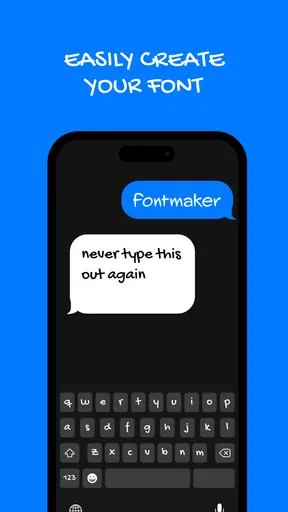
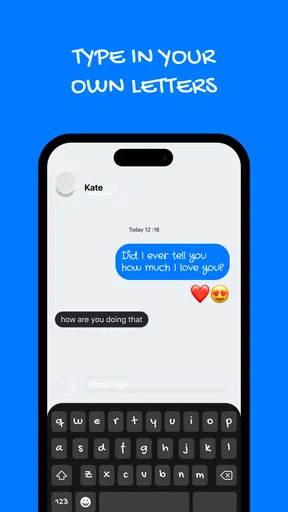
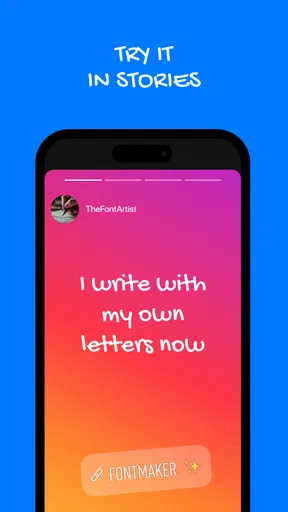
Once you've completed your masterpiece, the next step is integrating it into your keyboard. This is where the app truly shines. It seamlessly integrates with your device’s keyboard, allowing you to use your custom font in any app that supports text input. Whether you’re texting friends, posting on Instagram, or jotting down notes, your unique style is just a tap away.
Switching between fonts is a breeze. The app lets you toggle between your creations and standard fonts with minimal effort. I found this particularly handy when I wanted to switch things up quickly without diving into settings menus. The flexibility here ensures that your creative expression isn’t hindered by technical limitations.
Worth Reading Before You Choose

EA SPORTS FC Mobile 26 Is a Bigger Football Game, but It Takes Time

Flipboard Shows What News Apps Must Do Beyond the Feed

Switching to Android Auto Means Rethinking Your Driving Routine

Google Calendar Makes a Crowded Week Easier to Manage

Ludo King Makes the Most of the Minutes Between Plans

Baby Panda World Brings Quick Play to Modern Phones, but Its Game Library Feels Busy
The important handoff is from the keyboard to the place where the text will be read. A font can look expressive in the creation screen and still feel cramped in a small message field, so I would send a test line to myself or preview it in the intended context before writing something important. This is especially worthwhile for a name, a date, or a short announcement, where a hard-to-read character can change the meaning.
There is also a difference between styling text while composing and controlling how a receiving app displays it. The keyboard makes custom lettering convenient to enter, but the final appearance can depend on the app and the device displaying the message. I would use the handwritten style for personality, not for information that must be perfectly uniform everywhere. If a post needs exact layout, spacing, or print-ready output, a dedicated graphics or layout tool is a safer choice.
Creating, typing, and deciding where it fits
I use this section to focus on the small decisions that make a hand-drawn font work beyond the creation screen: checking repeated letters, testing a short message, and choosing a destination where decorative text makes sense. The key is to treat the keyboard as one step in a larger writing flow, so I can enjoy the personal look without letting style get in the way of clarity.
What the drawing step rewards
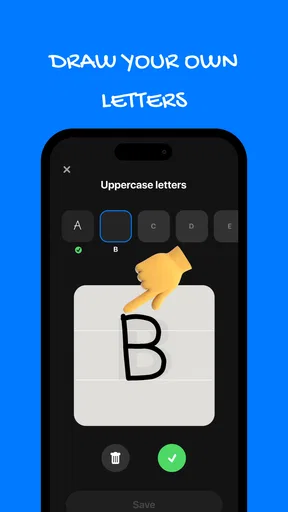
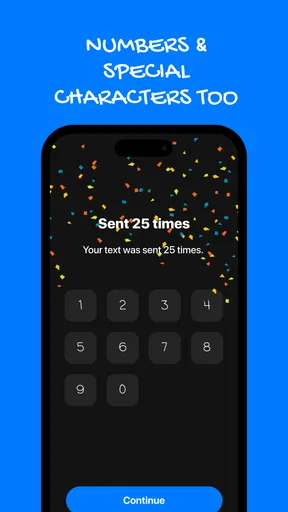
The first thing that strikes you when you open the Fontmaker - Font Keyboard App is its simplicity. The interface is as user-friendly as it gets, guiding you through the process of font creation with ease. I was pleasantly surprised at how intuitive it felt. You start by drawing each letter, number, and symbol on a grid. It’s like being back in art class but way cooler since you’re about to see your creation come to life digitally.
As you doodle your way through the alphabet, the app provides a real-time preview of how your custom font looks. This feature is a game-changer because it saves a ton of time. You can instantly see if that quirky "A" fits in with the rest of your set or if you need to tweak it. The app’s interface makes sure you're not overwhelmed, displaying only the essential tools you need to get the job done without any unnecessary clutter.
That preview is more than a nice extra: I would use it as a consistency check, not just a moment to admire an individual character. Look for letters that sit much taller or heavier than their neighbors, and check whether similar shapes remain distinguishable. If an uppercase I, lowercase l, and numeral 1 all end up nearly identical, a stylish font may become a frustrating one when used in an actual message. A few careful corrections before typing can save repeated edits later.
Who benefits most from making a font
This is a good fit if you enjoy hands-on personalization and mostly want distinctive short text. Someone who makes casual social captions, sends playful messages, or likes adding a recognizable signature to a note can get more out of drawing a typeface than choosing from a shelf of ready-made styles. It also suits people who want the result to feel like their own handwriting, even if the final letters are simplified for clarity.
It is less compelling if your main goal is to finish routine writing faster. Drawing a complete set takes more effort than selecting a built-in font, and the payoff is expressive rather than practical. If your priority is polished brand graphics, precise line spacing, or a consistent layout across a finished image, I would use a design app instead. If you simply want a quick decorative look, a collection of premade fonts may be the more efficient route.
One trade-off is that the character set is only as useful as the time spent checking it. A font intended for English captions may be fine for that purpose, while a message using less familiar letters or symbols deserves a test before you rely on it. The app supports a wide range of languages and symbols, which is welcome, but I would still verify the exact characters I need in the preview and in the destination app rather than assume every personal writing habit will look equally polished.
Sharing and choosing a ready-made alternative
Beyond just creating fonts for personal use, the app encourages you to share your creations. You can easily export your fonts or even share them with friends who are also using the app. This aspect adds a social element to the experience, fostering a community of typography enthusiasts.
If you're feeling uninspired, the app has a gallery of community-created fonts. Browsing through these can spark new ideas or simply provide a unique font for that special occasion. It’s like having a font library right in your pocket, always ready to offer a fresh perspective.
The gallery also offers a sensible shortcut when I need a visual change now rather than a personal typeface later. I would browse for a direction, then decide whether to use a community option or draw my own version with more recognizable letter shapes. That is a useful distinction: borrowing a style can solve a one-off need, while making a font is worthwhile when I want a repeated look that feels tied to me.
Compared with the usual alternatives, this app occupies a specific middle ground. A standard keyboard is quicker and clearer for everyday writing; a decorative-font keyboard can change the look immediately but does not make the letters personal; and a design editor gives more control over finished compositions but takes more steps. Fontmaker’s advantage is the connection between drawing and typing. Its limitation is the same: it is centered on entering text, not arranging a complete visual design.
Compatibility, practical checks, and the limits
Performance-wise, the app is smooth. There’s no lag when typing, and the fonts render beautifully across different platforms. I tested it on both Android and iOS devices, and the experience was consistent. The app doesn’t gobble up your phone’s resources either, which is a relief for those of us with older devices. It’s comforting to know that you don’t need the latest tech to enjoy what this app offers.
Compatibility is another strength. The app supports a wide range of languages and symbols, ensuring that no matter your linguistic background, you can create a font that truly represents you. This inclusivity is a welcome feature, allowing a larger audience to personalize their digital communication.
For Android users, the minimum operating-system requirement is version 8.0. The app is free to install, is rated for Everyone, and offers in-app purchases from around one dollar to around nine dollars per item. It was released on November 26, 2021, and version 1.8.10.78 is the current version. Sociaaal LLC develops it. Its 4.3 average from around 75,000 ratings, alongside over five million installs, suggests that many people have tried this kind of personal keyboard; those figures are useful context, but they cannot tell me whether my own handwriting will be easy to read.
My practical check would be to install it, draw only the characters I need for a short sample, and test that sample in the actual messaging or social app I use. That answers the questions that matter most: whether the keyboard feels comfortable to switch to, whether the letters remain clear at the displayed size, and whether the destination app preserves the appearance. If the first attempt looks uneven, I would refine a few recurring characters before investing time in a complete set.
There are limits to the workflow. Hand-drawing takes patience, especially if I want a complete alphabet rather than a handful of initials. A custom font can also be less legible than ordinary text, and the final look may vary with the receiving app. For an accessibility-sensitive message, a work document, or anything where the exact appearance is essential, plain text or a carefully designed image is a safer option. I would not choose a handwritten keyboard as a replacement for a dependable everyday keyboard; I would keep it as a creative tool for the moments when style is worth the extra effort.
A personal tool, not a universal keyboard
In a world where personalization is king, Fontmaker - Font Keyboard App offers a refreshing way to express yourself. The app’s blend of creativity, usability, and performance makes it a standout choice for anyone looking to add a personal touch to their digital conversations. Whether you're an artist at heart or just someone who loves a unique style, this app is definitely worth a try.
So, if you're ready to take your texting game to the next level and stand out in a sea of standard fonts, give Fontmaker - Font Keyboard App a go. Who knew typography could be this much fun?
Pros
- Easy to create custom fonts.
- Intuitive user interface.
- Wide range of design tools.
- Seamless integration with keyboard.
- Compatible with most apps.
Cons
- Limited free version features.
- Occasional lag in font rendering.
- Ads in the free version.
- Some features require in-app purchases.
- Limited font export options.
FAQs for Fontmaker - Font Keyboard App
What is Fontmaker - Font Keyboard App?
Fontmaker is an innovative app that allows users to create personalized fonts directly from their handwriting. Once created, these custom fonts can be used across various platforms, enhancing the personal touch of digital communication. The app is available for both Android and iOS devices, making it accessible to a wide audience.
How do I create my own font using Fontmaker?
Creating a font with Fontmaker involves a simple process. Users write each letter of the alphabet and numbers in their handwriting on a grid provided by the app. Once completed, Fontmaker converts these characters into a digital font that can be installed and used on your device's keyboard.
Is Fontmaker free to use, or does it require a purchase?
Fontmaker offers a free version with basic features, allowing users to experience font creation. However, for advanced features and more customization options, the app may offer in-app purchases or a premium version. It's best to check the app store for the latest pricing and subscription details.
Can I use my custom fonts across all apps on my device?
Once you create a font with Fontmaker, it integrates with your device's keyboard settings. This means you can use your custom fonts in any app that supports custom keyboards, including messaging apps, note-taking apps, and even email clients. However, compatibility might vary depending on the app.
Is Fontmaker user-friendly for beginners?
Yes, Fontmaker is designed with simplicity in mind, making it accessible for beginners. The app provides a straightforward interface and step-by-step guidance on creating fonts. Even users with no prior experience in font creation can easily navigate through the process and enjoy customizing their digital communications.


